
On this page
A file you can see in Telegram Desktop is not necessarily a file saved in the folder you expected. First identify the chat and attachment, then use the client or operating system to locate the actual downloaded copy. This article narrows the task to file location on a computer; the Desktop files overview covers cache, saved copies, and broader transfer problems. Telegram’s applications directory identifies the current desktop client routes.
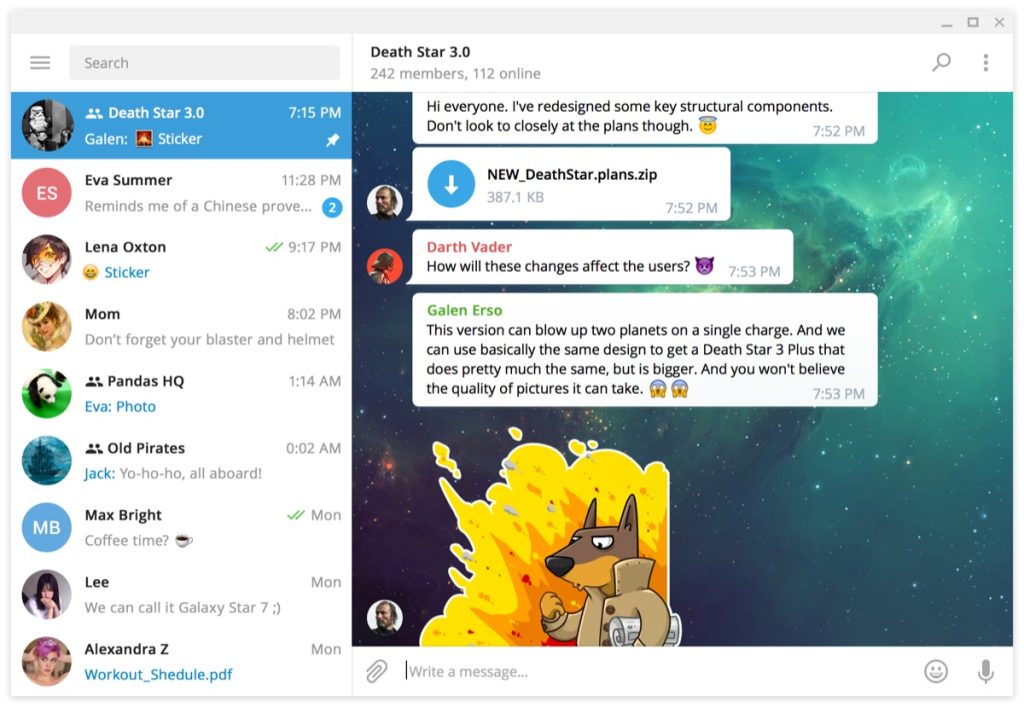
Find the attachment in the right chat
Confirm the account shown in Telegram Desktop, then search the conversation for the filename, sender, or a distinctive caption. Large groups can hide an older attachment among many messages; inspect the chat’s shared files or media view where the current client offers one. If you are signed in with a different phone number, changing a download folder will not bring another account’s messages into view.
Telegram’s FAQ distinguishes ordinary cloud chats from device-specific Secret Chats. If one file exists only in a Secret Chat on a phone, a new desktop session may not show that conversation. The multi-device checklist explains how to check account identity and chat type before investigating storage.
Confirm the transfer is complete
Open the attachment and watch the client until the download or open action completes. A thumbnail or filename in a chat does not prove the bytes are already stored where you expect. Retry with a small trusted document if you need to determine whether the problem affects one attachment or every transfer.
If the download stalls, inspect network connectivity and free disk space. A managed computer can also restrict downloads or file access; follow its policy. Do not install an unrelated “download repair” executable sent in a group message. The desktop setup guide is for client installation, not a substitute for a file-transfer diagnosis.
Use the client’s show-in-folder action
When the current Telegram Desktop interface offers an open-folder or show-in-folder action for a completed transfer, use it to reveal the exact path. Otherwise, inspect the client’s download settings and your operating system’s recent downloads. Do not assume every computer uses the same directory name or that a previous save-as location has been forgotten.
On Windows, compare the location with File Explorer and any organization-managed folders. On macOS, check Finder and the destination chosen by the app. On Linux, packaging and sandbox permissions can affect accessible folders. The Mac guide and Linux guide explain platform-specific context without pretending that one path fits every system.
Separate cache from a deliberate saved copy
Telegram can retain media locally so it opens faster in the chat. That local cache is not the same as a copy you explicitly saved to a project folder or a backup. Before clearing cache to recover disk space, save any important attachment to a known folder and verify that it opens from there. Clearing a cache, deleting a local file, and deleting a chat message are different actions.
A file still visible in a cloud chat on another device does not prove you have a permanent local copy on this computer. For collaborative work, name a destination folder and include it in your normal backup process. The files overview describes the larger storage picture.
Check the file before opening it
Location is only one part of safe handling. Check the sender, expected file type, and purpose before opening an attachment, especially an executable, script, or archive. A familiar chat name is not proof that every attachment is safe. Do not disable operating-system protection because a group post says a file is “official.”
If the file is intended for a group or channel, verify the audience before sharing it. A document posted to a large discussion can be copied by other members. The desktop community guide covers that conversation context.