
Telegram Desktop is the computer client for people who want to keep conversations and files available while working on Windows, macOS, or Linux. This guide focuses on choosing a desktop build and checking the first session—not on repeating the mobile download instructions. No Windows download destination is currently configured on this site. This guide still covers platform selection and setup; a download action appears only after the site editor adds a destination.
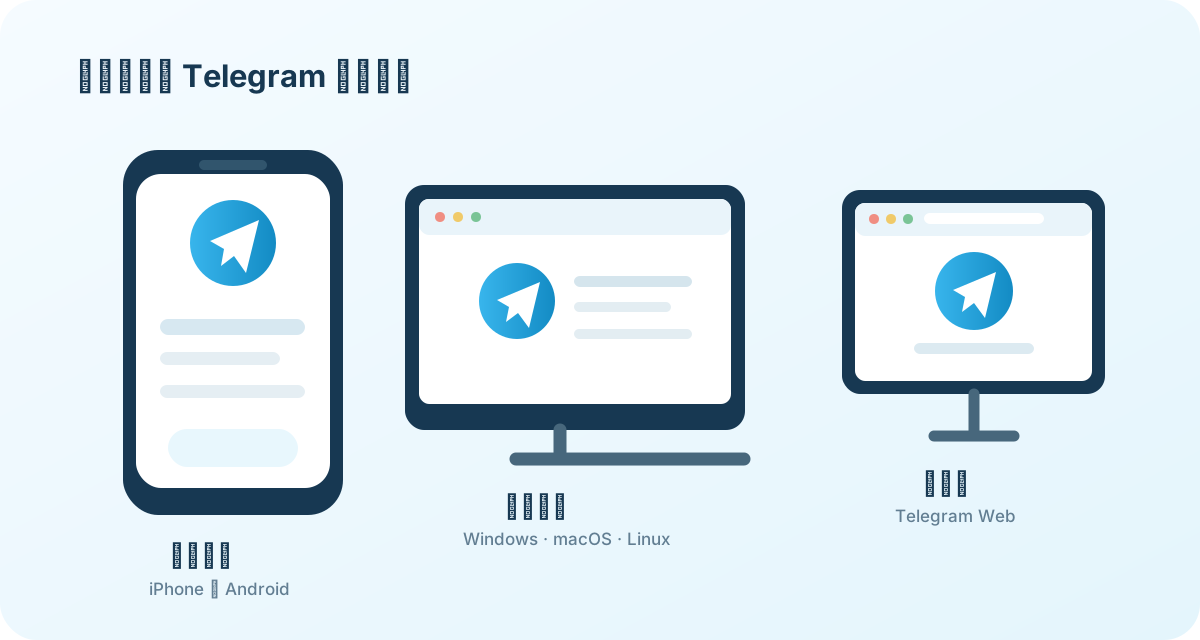
Choose the desktop build for your operating system
The Telegram Desktop page lists Windows, macOS, and Linux options. Windows users should distinguish the installer from the portable build; the portable option is useful when you want the application files in a chosen folder, while the installer follows the normal system installation flow. macOS and Linux have their own builds and distribution choices. A Windows executable is not an installer for a Mac or a Linux desktop.
Before selecting a file, confirm the operating system, architecture, and the actual file offered by the download destination. A label such as “Windows 64-bit” is not enough to establish the publisher or current version. The configured site-hosted file’s version, file size, publisher signature where applicable, and SHA-256 must be checked against the file actually served. Until that evidence is available, do not describe the file as a verified current release.
What changes when you sign in on a computer?
Telegram supports using an account on multiple devices. After signing in on Desktop, ordinary cloud chats can be available across your signed-in devices. Do not assume that every conversation moves to a new computer: Telegram’s FAQ says Secret Chats are device-specific and do not live in the Telegram cloud. If a conversation is missing on a new desktop session, first identify whether it is a cloud chat or a Secret Chat before trying to reinstall the app.
Only enter login codes in Telegram’s own sign-in flow. A web page, bot, or person offering to “activate” Desktop should not be given your code or two-step verification password. On a shared computer, review the application’s passcode and session controls, and sign out when that computer should no longer have access.
Installer versus portable: how to decide
- Regular installer: choose this when you control the computer and want a conventional installed application and shortcuts.
- Portable build: choose this only when you understand where the program and its data will be stored and how that folder will be protected or removed.
- macOS or Linux: use the corresponding platform option, then follow that system’s permissions and update mechanism rather than Windows-specific steps.
Portable does not mean anonymous or automatically safer. The account session still needs protection. If you cannot verify the origin or integrity of a file, stop before running it; do not turn off operating-system protections to force installation.
First-session checks after installation
- Open a familiar cloud chat and confirm that recent messages appear. If only one chat is missing, check its type before assuming that synchronization failed.
- Open a group or channel you actually use and check its notification state. A muted group can look like a broken notification system even while private chats work normally.
- Send yourself a small test file, then find where the desktop app saves downloads. Storage and automatic media settings may differ from the phone.
- Review the list of signed-in devices in the account’s privacy/security settings. End only the sessions you recognize as unnecessary; keep access to a trusted device while resolving login problems.
For detailed file and cache tasks, continue to the Desktop files guide. For groups and channel notifications, use the Desktop community guide.
When the app opens but something does not work
If Telegram Desktop starts but cannot receive messages, first distinguish network connectivity from a muted conversation or an account session issue. If downloads fail, check the destination folder, available storage, and the file’s status inside Telegram before installing another copy of the app. If a new update changes a menu name, use the current interface and compare it with Telegram’s current application page; the exact location of settings can change between releases.
If your task is simply to access a conversation without installing a desktop program, review the Telegram Web guide. The browser option has a different sign-in and session environment; do not treat a browser tab and an installed desktop application as the same download.
Download status and source notes
No Windows Desktop download destination is currently configured on this site. If one is added, verify the exact file version, signature, and checksum before describing it as a current release. Primary references for platform choices and account behavior are the Telegram Desktop page and Telegram FAQ. The page must be updated when the configured target and its file information can be checked.