
On this page
Files shared in a Telegram Desktop group can be easy to find and easy to mishandle. A group attachment is visible to members according to that community’s settings, while the local copy you download belongs to the computer you used. This article covers finding, saving, and checking a group file. Telegram’s FAQ explains the group context; the Desktop files overview covers storage more broadly.
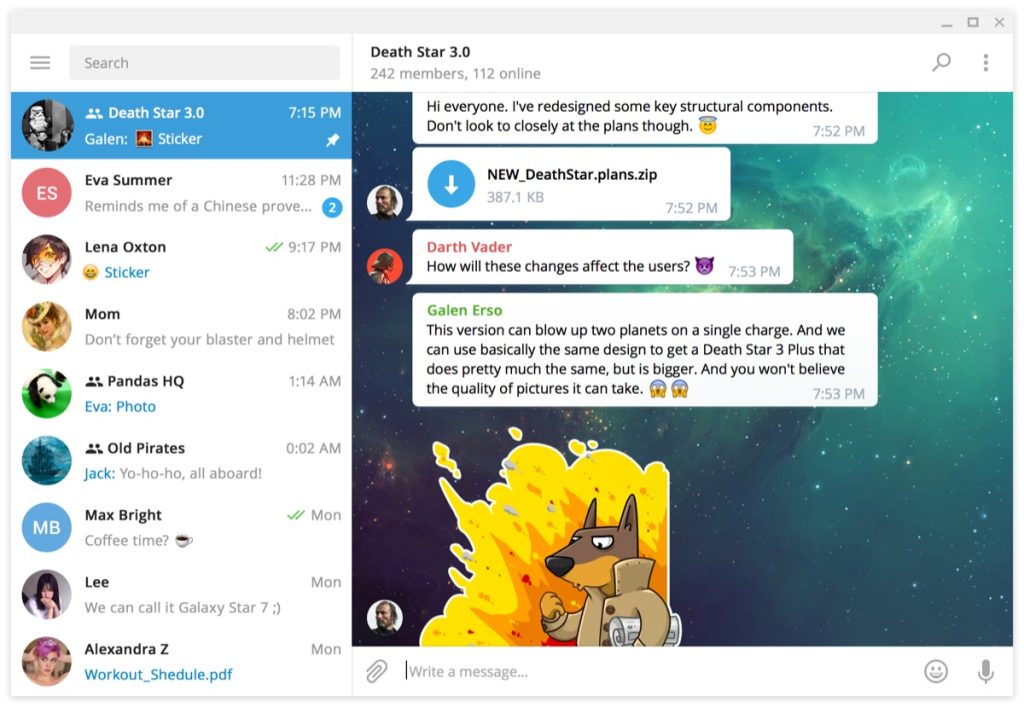
Confirm the group and sender first
Open the intended group and inspect who posted the attachment. A filename, pinned message, or familiar group icon does not prove a file’s publisher. If the file is supposed to be an installer, verify its source, version, and integrity outside the group before running it. Do not disable operating-system protection because another member says the file is “safe.”
The community guide covers participation and moderation. If an invitation itself was unexpected, use the invite checklist before treating its files as trustworthy.
Search for the actual attachment
Use the chat search or shared-file view in the current desktop client. Search by a distinctive filename, sender, caption, or date instead of scrolling indefinitely. If you cannot find the group, first check account identity and archived chats. A file posted to another Telegram account will not appear merely because you change the computer’s download folder.
If only one conversation seems absent, compare cloud chat and Secret Chat behavior in Telegram’s FAQ. The multi-device guide helps distinguish an account mismatch from a device-specific conversation.
Complete the transfer and reveal the saved path
Open or download the attachment in Telegram Desktop and wait for completion. Then use the client’s show-in-folder action where available to reveal its actual path. If the client prompted for a destination, inspect that chosen folder rather than assuming the system Downloads folder. On Linux, sandboxed packaging may affect folder access; Mac and Windows use different file browsers.
The file-location article provides the step-by-step path check. A thumbnail still shown in the group does not establish that an independent local copy was saved or backed up.
Decide whether to keep a permanent copy
For important group documents, save a copy in a known project folder and include it in your normal backup process. Verify that it opens from that folder. Telegram may keep cached media for faster access, but cache is not a replacement for a deliberate saved copy. Clearing cache, deleting a saved file, and deleting a group message are separate actions.
See the cache guide before removing local media to recover disk space. A group file may be available again through the cloud chat, but do not rely on that as your only preservation method for work you must keep.
Share back to the intended audience
Before sending a revised file, check the selected conversation and whether the group is public or private. Review the document for personal data or hidden content you do not intend to share. Once posted, other members may copy it; removing your local copy does not undo their access.
If the group appears to distribute impersonated software or asks for account codes, leave or report it through Telegram’s current controls as appropriate. Never enter a login code into a page linked by a group attachment. The file workflow and account-security workflow should remain separate decisions.